Plan once. Post everywhere.
Zend Studio is the content calendar inside Zend Agent, a desktop assistant for Windows. Creators and small businesses use it to write, preview, schedule and publish their own photos and videos to Instagram, TikTok, YouTube and Facebook, all from one place.
What it does
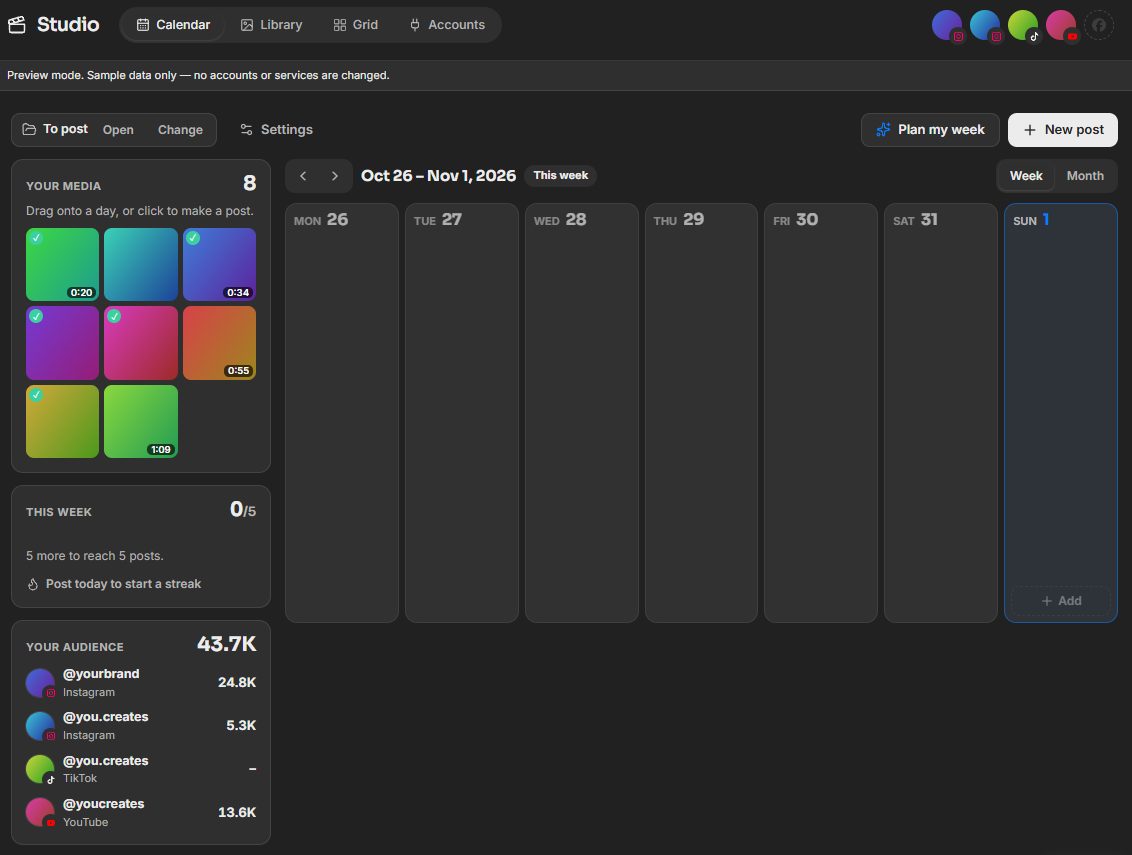
One calendar for every account
See the week or the month, drag a video onto a day, and Zend Studio makes the post. Connect several accounts per platform and group them, like "Personal" or "My business".
Captions that sound like you
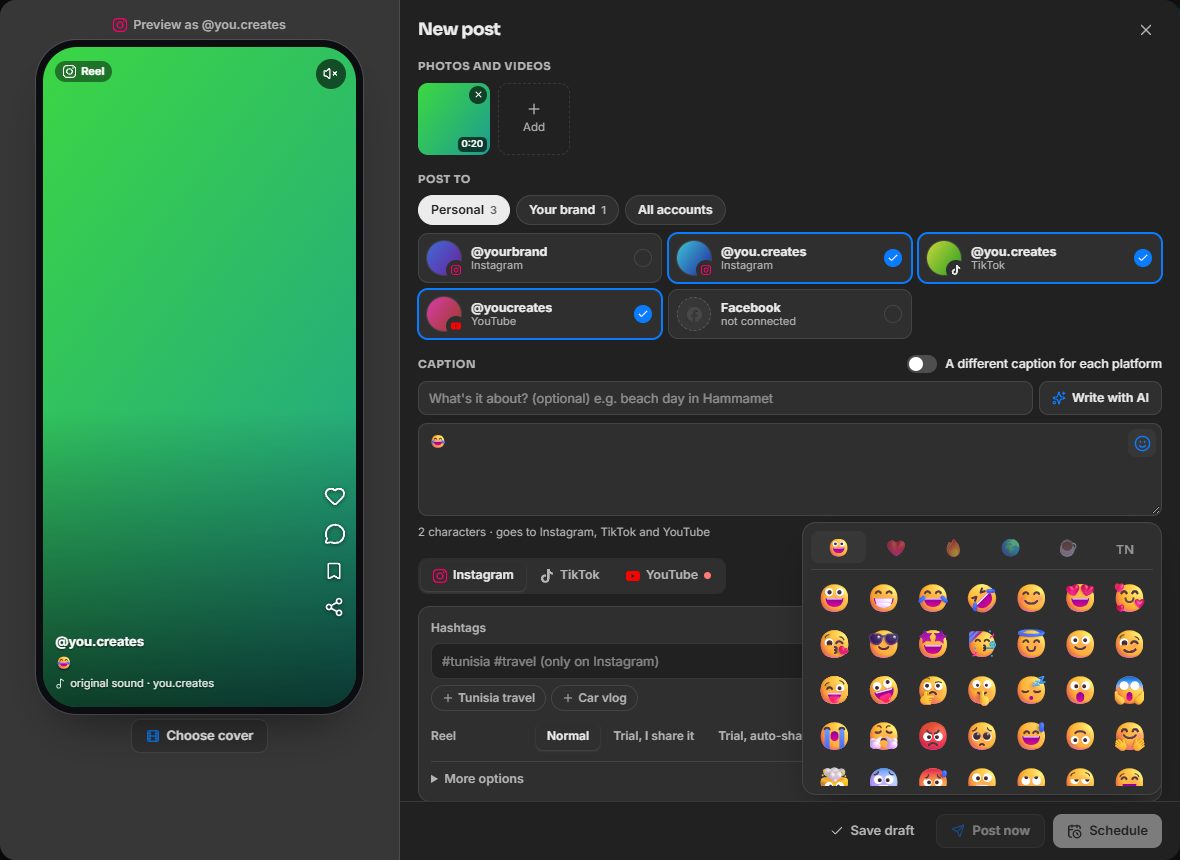
Write one caption for every platform or one each. Add emojis, keep hashtags per platform, and let the AI helper suggest a caption, a YouTube title and tags in your own style.
See it before it posts
A live preview shows the post as it will look on each platform: a Reel, a TikTok, a YouTube Short or video, or a Facebook post. Pick the cover frame and hear the video's sound.
Every platform's options
YouTube title, description, playlist, category and visibility; Instagram trial Reels and collaborators; TikTok privacy, interactions and content disclosure; Facebook video titles.
You approve every post
Nothing is published until you press Schedule or Post now. Zend Studio checks each platform's rules first, then shows each account's progress live, with a link when it's up.
Your files stay with you
Zend Studio runs on your own computer and reads the folder you choose. A file goes only to the platform you post it to, when you post it.
How it works
- Connect your accounts. Sign in on each platform's own page and choose what Zend Studio may do. It never sees your password.
- Choose your folder. Pick the folder with the photos and videos you want to post, or add single files from your PC.
- Make a post. Pick the video, the accounts, the caption and each platform's options. The preview updates as you type.
- Schedule it or post now. At the time you chose, Zend Studio publishes it to the accounts you picked and tells you how it went.
Posting to TikTok
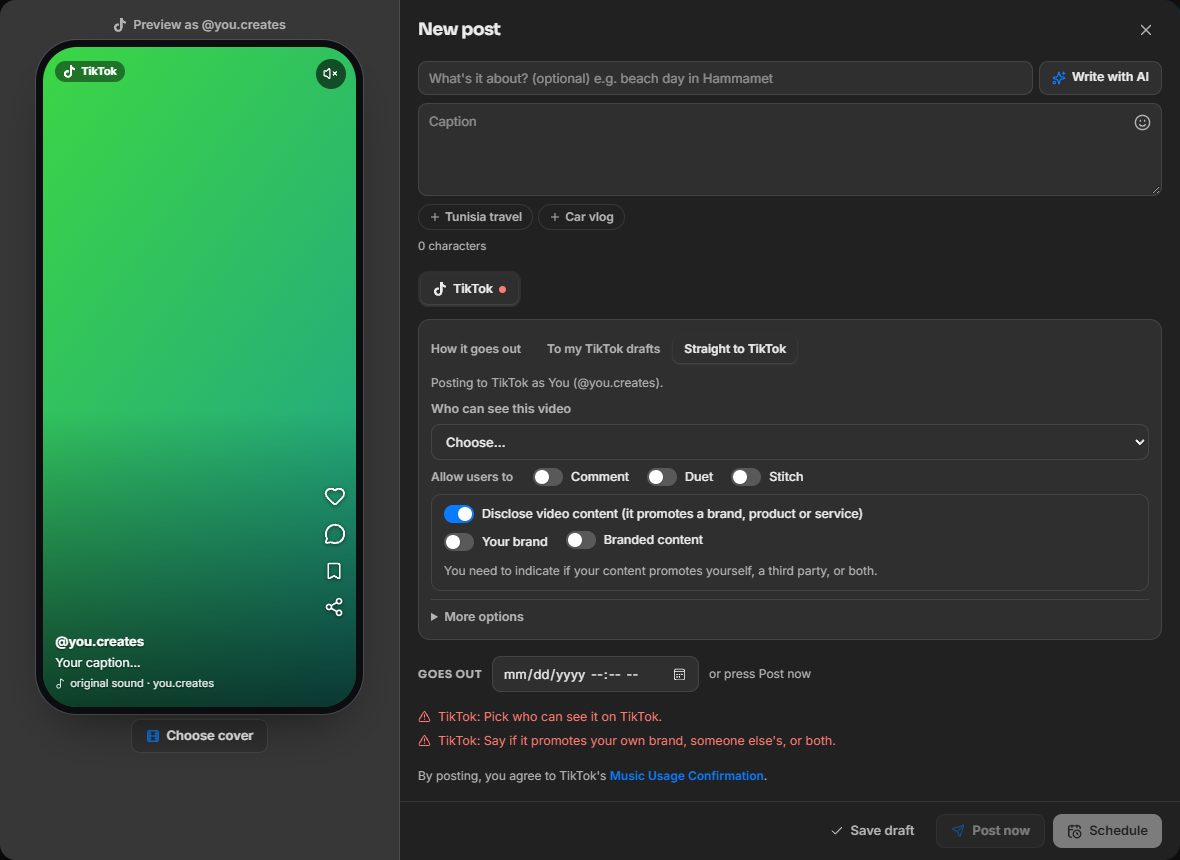
Zend Studio uses TikTok's official Login Kit and Content Posting API. You choose, for every post, how it goes out:
- To your TikTok drafts. Zend Studio uploads the video to your TikTok inbox. TikTok sends you a notification; you open it, add a sound if you like, paste your caption and post it from the TikTok app.
- Straight to TikTok. The post page shows the TikTok account it goes to, and you choose who can see the video (nothing is chosen for you), whether people may comment, duet or stitch (all off until you turn them on, and greyed out if your TikTok settings don't allow them), and whether the video promotes your own brand or is branded content. TikTok's Music Usage Confirmation and, for branded content, its Branded Content Policy are shown before you post.
Zend Studio never adds watermarks, logos or text to your videos. After posting, TikTok may take a few minutes to process the video before it shows on your profile; Zend Studio follows its progress and shows you the result.
Questions
Who is Zend Studio for?
Creators and small businesses who post their own photos and videos on more than one platform and want to plan them in one place.
Does Zend Studio post without asking me?
No. Only posts you approved are published, at the time you chose, to the accounts you picked.
What does Zend Studio keep?
Your calendar and settings stay on your computer. The sign-in keys platforms give Zend Studio are stored encrypted there. Read the Privacy policy for the details.
How do I disconnect an account or delete my data?
In Zend Studio, open Accounts and press Disconnect, or remove Zend Studio from the platform's own settings. See Data deletion for every option.
How do I reach you?
Email adoumazzouz.aa@gmail.com.